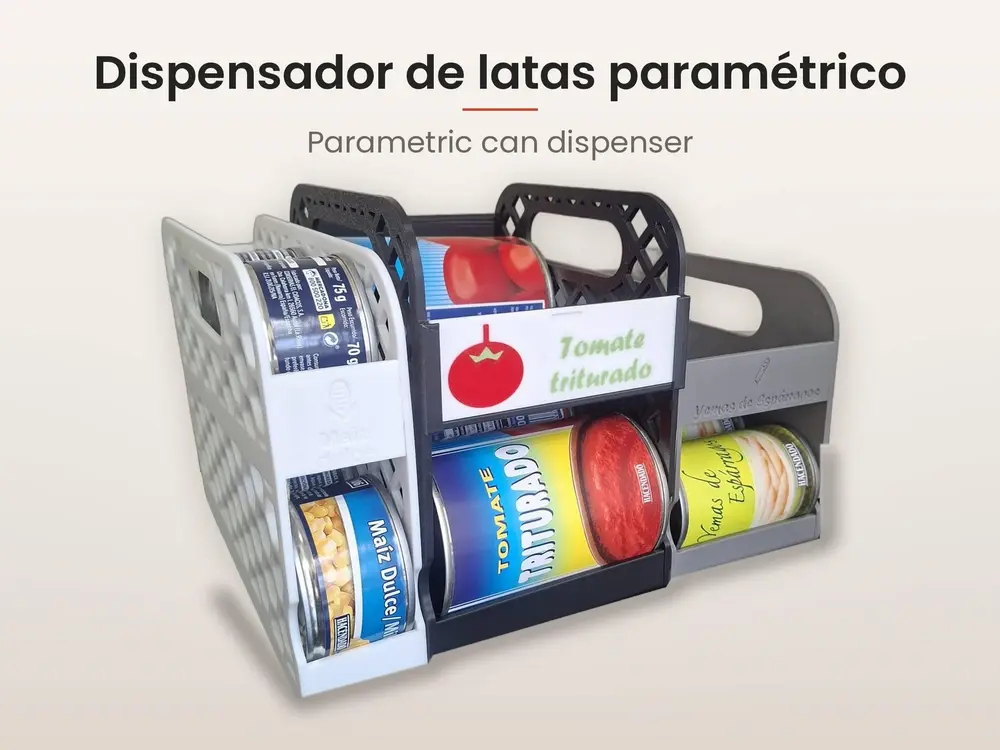
Parametric Can Dispenser (OpenSCAD) – Dispensador de latas paramétrico


🇪🇸 DISPENSADOR DE LATAS PARAMÉTRICO (OpenSCAD)
Guarda las latas tumbadas: se cargan por arriba y salen por delante de una en una, la más antigua primero. Ábrelo en OpenSCAD, elige tu lata, cuántas quieres y tu impresora, y genera las piezas a tu medida.
QUÉ PUEDES HACER
- Cualquier lata: elige una de la lista o escribe su diámetro y su alto.
- Capacidad automática: calcula solo los niveles en zigzag que caben en tu cama (Kobra X, Kobra S1 o la medida que quieras).
- Paneles con panal, rombos o lisos; asa y hendidura para coger la lata.
- Texto (se reparte y ajusta solo) y dibujo: 5 incluidos o tu propio SVG.
- Etiqueta intercambiable opcional, grabada o en dos colores.
- Dos piezas con pestañas ocultas: sin tornillos, sin pegamento y sin soportes.
- Test de encaje para ajustar la holgura a tu impresora.
CÓMO USARLO
1. Instala OpenSCAD (openscad.org). Recomendado: la versión de desarrollo más reciente, que genera las piezas en segundos.
2. Abre dispensador_latas_makeronline.scad y muestra el panel Ventana › Personalizador (Window › Customizer).
3. Primera vez: en "Pieza" elige "Test de encaje", pulsa F6, exporta a STL (Archivo › Exportar) e imprímelo. Pon en "holgura encaje" el valor que entre firme sin forzar.
4. Elige la lata, cuántas quieres, la impresora, el marcado y el diseño.
5. En "Pieza" elige Lateral, pulsa F6 y exporta a STL. Repite con Tapa y, si la activas, Etiqueta y Marcado de la etiqueta.
IMPRESIÓN
- Sin soportes. Lateral con las pestañas hacia arriba; Tapa con la cara interior hacia arriba (ya salen colocadas así).
- Etiqueta en dos colores: carga Etiqueta y Marcado a la vez como una sola pieza de varias partes y asigna un color a cada una.
- Monta la Tapa a presión sobre el Lateral y carga las latas por arriba.
Licencia CC BY-NC-SA 4.0 · © 2026 Anuska Esteban
────────────────────────
🇬🇧 PARAMETRIC CAN DISPENSER (OpenSCAD)
Stores cans lying down: load them from the top and take them out one by one from the front, oldest first. Open it in OpenSCAD, pick your can, how many you want and your printer, and generate parts made to measure.
WHAT YOU CAN DO
- Any can: pick one from the list or type its diameter and height.
- Automatic capacity: works out the zigzag levels that fit your bed (Kobra X, Kobra S1 or any size).
- Honeycomb, diamond or solid panels; handle and finger notch.
- Text (auto-split and auto-sized) and picture: 5 included or your own SVG.
- Optional swappable label, engraved or two-color.
- Two parts joined by hidden tabs: no screws, no glue, no supports.
- Fit test to tune the clearance to your printer.
HOW TO USE IT
1. Install OpenSCAD (openscad.org). Recommended: the latest development snapshot, which builds the parts in seconds.
2. Open dispensador_latas_makeronline.scad and show Window › Customizer.
3. First time: set "Pieza" to "Test de encaje" (fit test), press F6, export to STL (File › Export) and print it. Enter the value that fits firmly in "holgura encaje".
4. Choose the can, how many, the printer, the marking and the design.
5. Set "Pieza" to Lateral (Side), press F6 and export to STL. Repeat with Tapa (Lid) and, if enabled, Etiqueta (Label) and Marcado (label marking).
PRINTING
- No supports. Side with tabs up; Lid with the inner face up (already placed that way).
- Two-color label: load Label and Marking together as one multi-part object and assign a color to each.
- Press the Lid onto the Side and load cans from the top.
License CC BY-NC-SA 4.0 · © 2026 Anuska Esteban