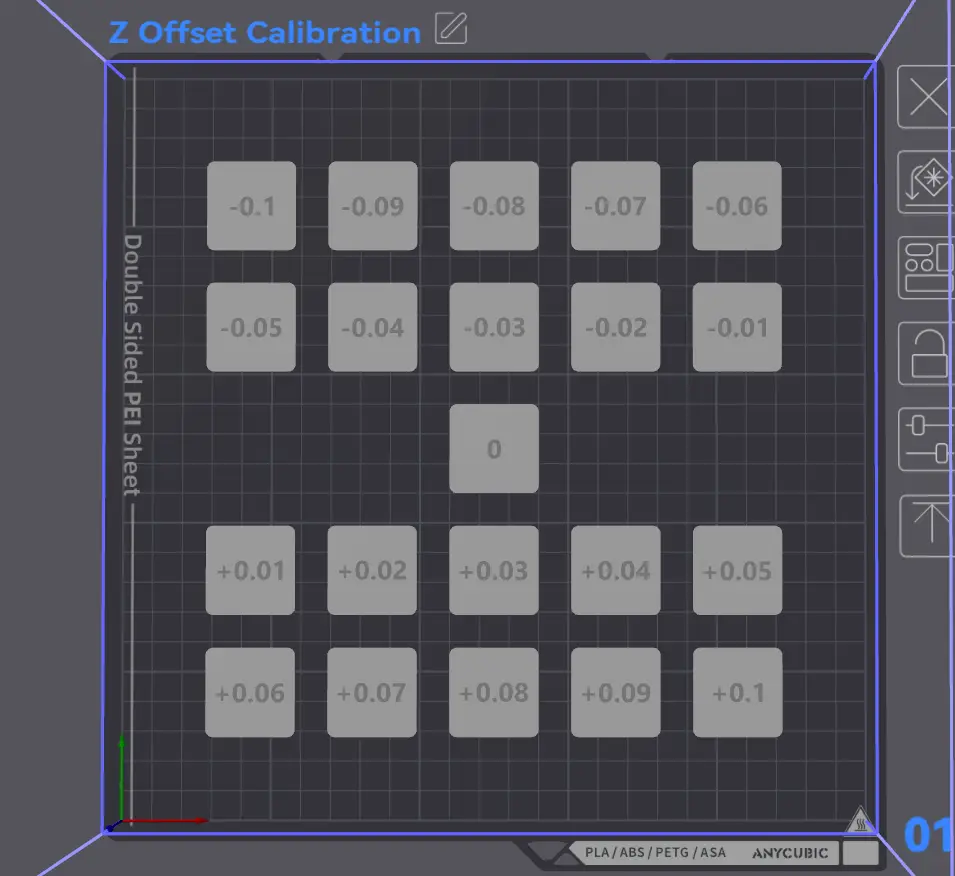
Z-Offset Calibration


Update Feb 3, 2026:
I have updated the script and the 3mf file to now include positive Z-Offset calibration as well. This can now be used to calibrate from -0.1mm to +0.1mm. I will be adding more plates to allow more file tuning of your offset. The final product will probably have somewhere around 23 plates. 1 for testing negative offsets, one for positive offsets, and one each for steps of 0.001 for in-between the steps that are currently available. An example would be that if say +0.02 and +0.03 both look really good, There would be a plate for testing the values in-between those to REALY dial in your machine. This is going to be quite tedious work, but look forward to the full selection of plates in the next week or two. I am planning on grinding it all out this weekend so i can update this ASAP.
Since the 2.6.0.0 Kobra S1 firmware update, something seems to have broken the leveling on my S1. I was getting instant blobs at the start of prints, filament not sticking to the bed, etc. Scratched my head for hours before i found out that it was the Z-Offset. To fix this, I made this simple python Post-Processing script that can be called from Process > Others > Post-Processing Scripts. The script will automatically take the base z-offset value from the generated GCode file, and then modify only the Z values by a predetermined amount per specific object. I recommend that you set the z-offset value under Printer Settings > Basic Information > Z Offset to 0 before trying to print.
I have set this up to test z-offset values from -0.1mm to -0.01 mm. If you need to, you can also delete the objects on the plate that you don't need, and this script will work perfectly fine.
To make this work, save the z_offset_calibration_script.py to a known location (i recommend inside the slicer files, or your documents folder. You can also just keep it in the download folder after you extract it, it will still work just fine). Look for the python executable (.exe) on your pc (possibly C:\Users\(your user)\AppData\Local\Python\pythoncore-3.14-64) and right-click and select "Copy as path". Paste that into Process > Others > Post-Processing Scrips. Then find where you have the actual script file (z_offset_calibration_script.py) and copy as path as well and paste it after the python executable. Now, slice the project and send it to your printer. The slicer will run the script before either exporting the GCode file, or uploading it directly to your printer.
Keep in mind that in order for the script to know what objects to change the z values for, you need to open the .3mf file, as the objects in there are already set-up to recognize the objects and correctly assign the appropriate offset values. Once you open the 3mf file, you can select your particular printer and process settings. Everything will work as long as you have the paths set-up correctly in the post processing scripts section.
Here is an example of what it should look like in your Post-Processing Scripts Box:
"C:\Users\(Your User)\AppData\Local\Python\pythoncore-3.14-64\python.exe" "C:\Users\(Your User)\Documents\Z_Offset_Calibration\z_offset_calibration_script.py";
- Interpreting the results
After the print is finished, find the object that looks the best, and add that offset to what is currently applied in the slicer. For instance, if the offset is 0 in the slicer, and the -0.07 square looks best, set your z-offset in the printer settings to -0.07. If your offset is already set to say -0.02 and the -0.03 square looks the best, set your z-offset to -0.05.
Note that python must be installed on your pc. You can download it from the python website, or the microsoft store.
This script is also not just limited to the Kobra S1. You can use it for just about any printer that you need to calibrate. This also works, in the manner described above, with Orca Slicer. I have not tested in others besides Anycubic Slicer Next, but it should work in any that allow post-processing python scripts.
WARNING - Running this test can cause the nozzle to run into the print bed. Please make sure that you keep in mind any previous offset you may have set (as this will modify that value), and your layer height. I recommend going no lower than half of your current layer height. For instance, a 0.12mm layer height, don't go any lower than -0.06mm, unless you know absolutely that you need a lower value. I am not responsible for any damage to your machines by running this script. The script itself is perfectly safe to run on your pc, and is virus free, but feel free to check the file yourself using utilities such as Virus Total. Here is the Virus Total link for you to check out if you are worried https://www.virustotal.com/gui/file/69e9f15c9050c0f1bd18fbfa818743830b6f85201909760608d73b00d9684e90?nocache=1
AI Disclaimer
Since I am not a coder, I did have AI generate the script, but has gone through testing on my end to make sure that it does indeed work as intended.